User guide
How to use Katalogi
Last updated 28 September 2026
Getting started
Create your free account
Sign up with your email or Google account. New accounts get 2 free credits, enough for a first set of 2 photos, no card needed.
Find your way around
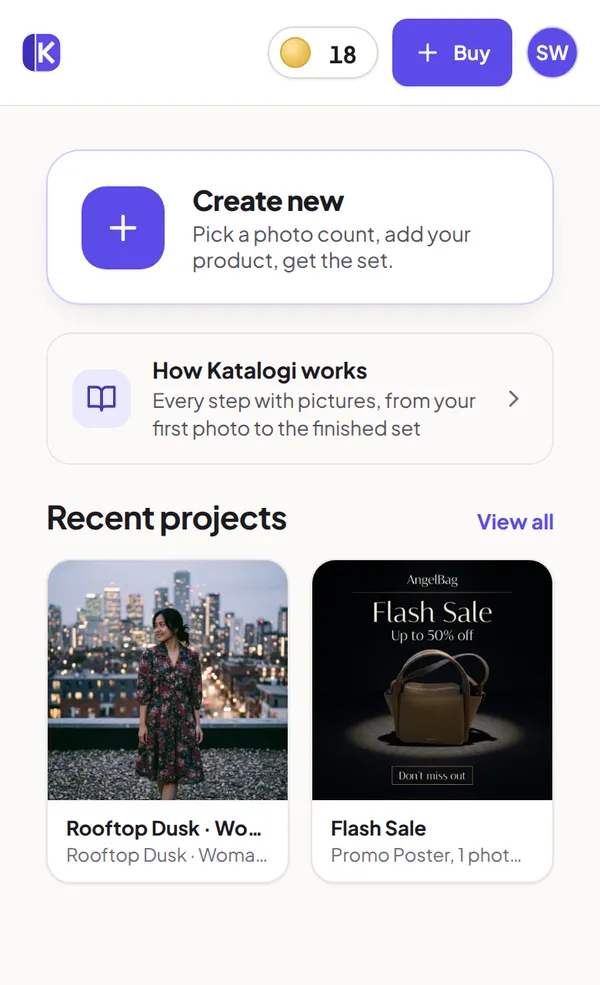
After signing in you land on the dashboard. On a phone the tabs sit at the bottom of the screen:
- Home: a shortcut to create something new, and your recent projects.
- Create: start new product photos or a promo poster.
- Gallery: every set and poster you have made, kept in one place.
- Credits: buy credit packs and see your transaction history.
- Account: language, sign out, and Help & contact.
Pick your language
Katalogi works in English and Bahasa Indonesia. Switch any time from the language menu at the top of the page.
Take a good product photo
The result can only be as faithful as the photo you give us. You do not need a studio or a clean background, a phone photo is fine, but a few habits make a real difference:
- Good light
- Daylight near a window works best.
- Whole product
- Nothing cut off at the edges.
- Sharp focus
- Hold still and tap to focus.
- Clear label and design
- Your brand, words and pattern should be easy to read in the photo.
- Plain background
- A clean, simple surface is best.
- No other branding
- No other brands’ logos, watermarks or added text.
- One product
- Keep each photo to a single product.
- Add an angle
- A second view helps the result match.
Create product photos, step by step
One generate makes a set of photos of one product. Each photo gets its own angle and composition, planned for your product, so you get a set that reads like a real catalog shoot, not the same shot repeated.
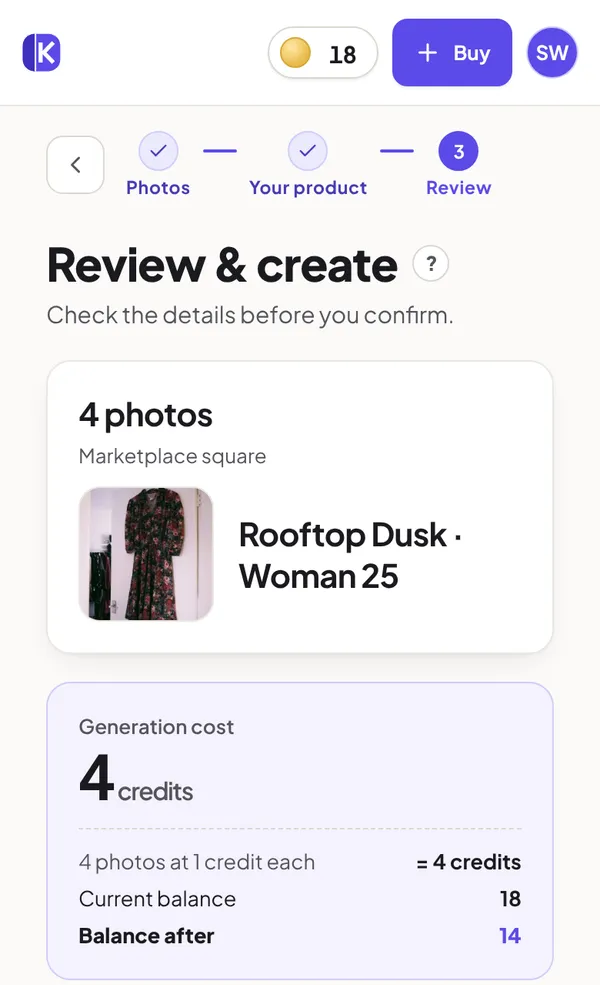
Choose Product Photos
Tap Create new (or the Create tab) and choose Product Photos.
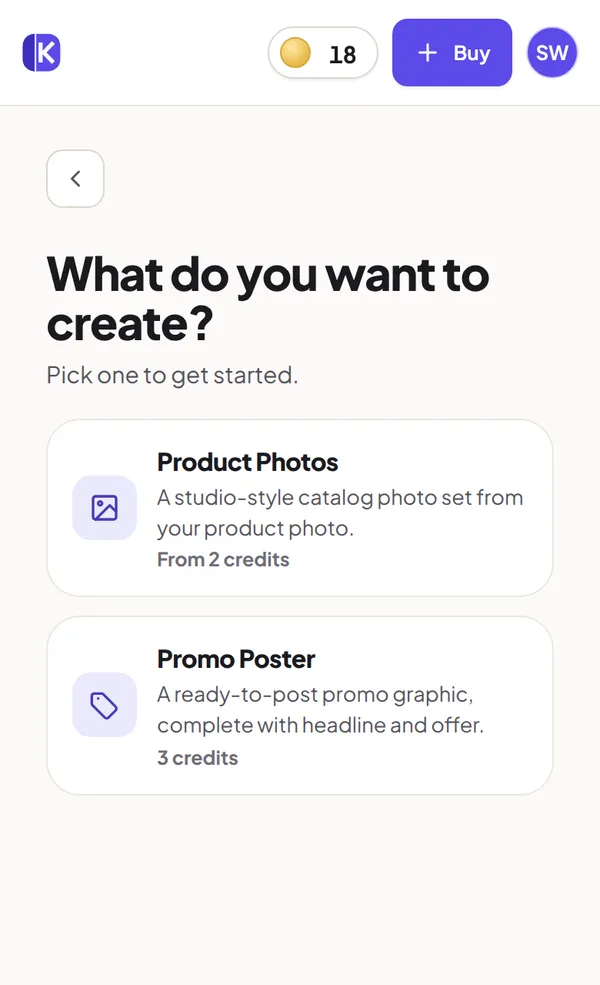
Choose how many photos
Pick a preset (Standard, Medium or Professional) or type your own number from 2 to 25. Every photo costs one credit, whichever you pick. This is how many photos we make, not how many you upload.
Upload your product
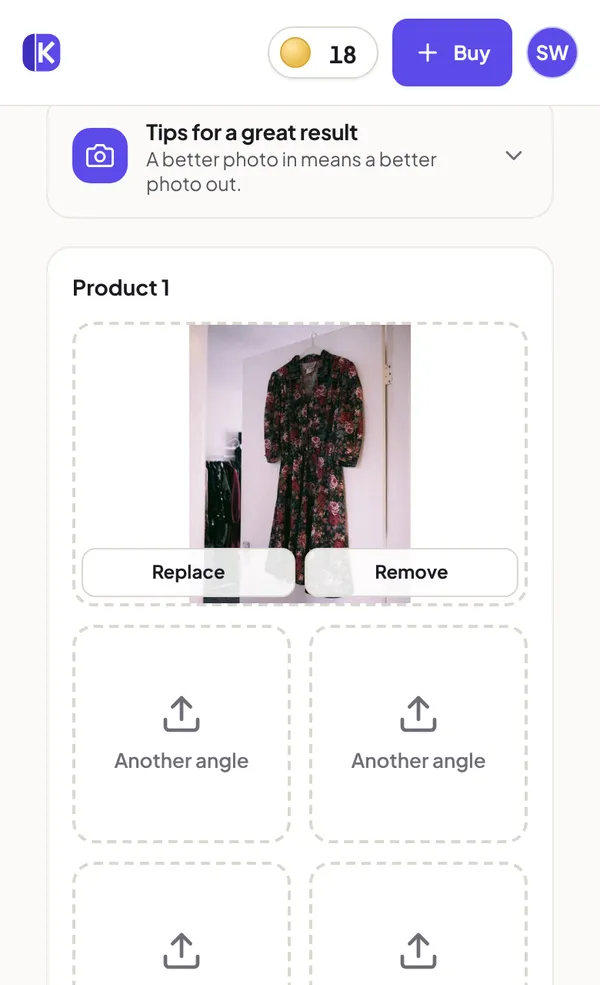
Take a photo or choose one from your gallery. You can add up to 5 photos of the same product from different angles at no extra cost. More angles help us keep the product exactly as it is: its shape, colour, label and pattern.
Pick a scene
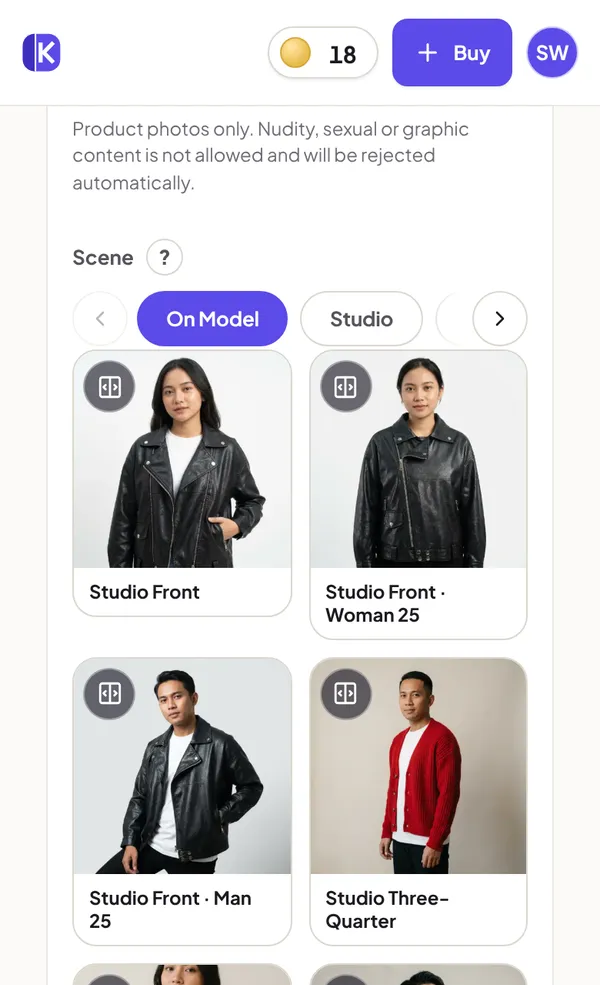
Choose where your product is photographed. There are 191 scenes across 14 categories, including studio, outdoor, lifestyle, cafe, festive and luxury. Tap Before and after on a scene to see a real Katalogi result made with it.
- On Model: an AI-generated adult model wears or holds your product. Good for clothing, bags, accessories and anything held in the hand. It costs the same as any other scene.
- Upload your scene: use your own background photo, such as your shop counter or a table you like, and describe in one line where the product should sit. For example: “wooden cafe table, warm light, product in the centre”.
- Photo direction (optional): one line on how you want the photos to look, such as “model with one hand raised” or “shot from a low angle, soft morning light”. It applies to every photo in the set. It can describe the pose, angle, framing, lighting, mood or props, never the product itself, which always stays exactly as in your photo. Requests for text or logos, real or famous people, children or anything unsafe are declined before anything is charged.
Pick a photo shape
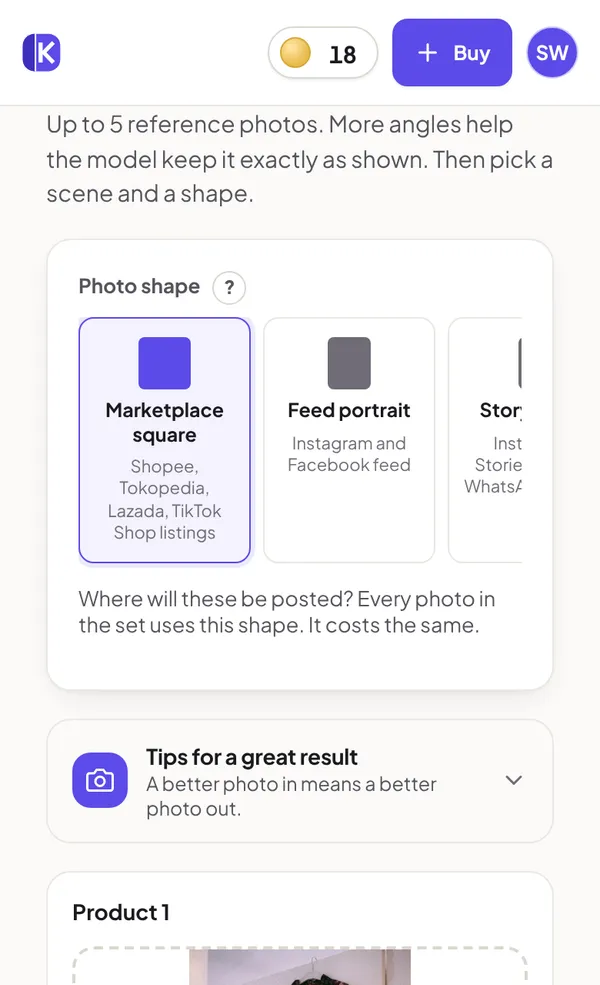
Choose the shape that fits where you will post the photos. Every photo in the set uses it, and every shape costs the same.
- Marketplace square
- Shopee, Tokopedia, Lazada, TikTok Shop listings
- Feed portrait
- Instagram and Facebook feed
- Story / Reel
- Instagram Stories, TikTok, WhatsApp Status
- Pin
- Pinterest and lookbooks
- Classic portrait
- A standard upright product shot
- Wide
- Site banners and video thumbnails
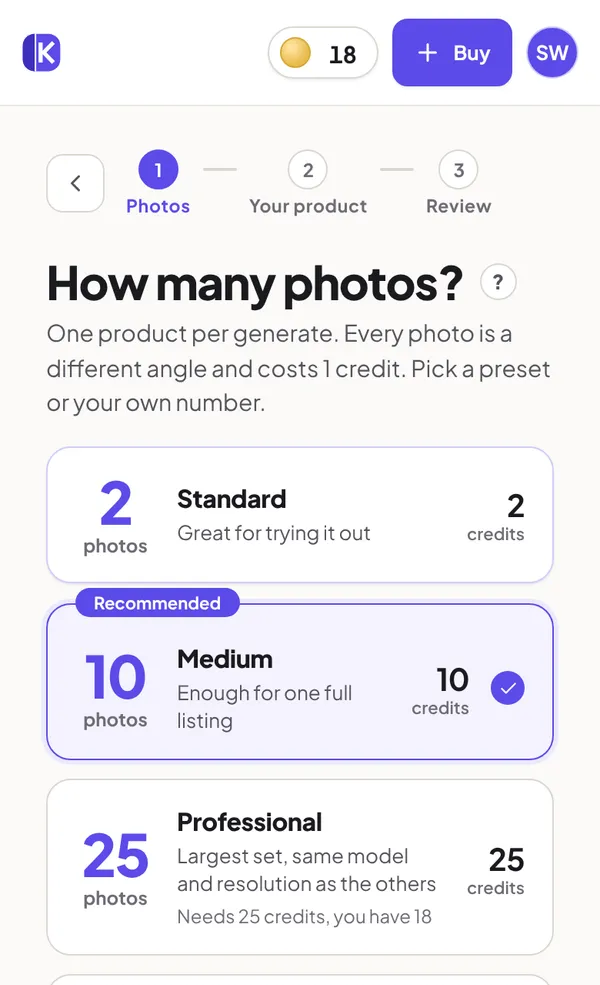
Review and create
Check the summary: the photo count, the cost in credits, and your balance before and after. Tick the box to confirm you agree to the Terms (you are asked every time you create something that uses credits), then tap Create now.
While your photos are made
A photo usually takes about 30 seconds, and several are made at once. A progress screen shows how many are in progress and how many are waiting their turn.
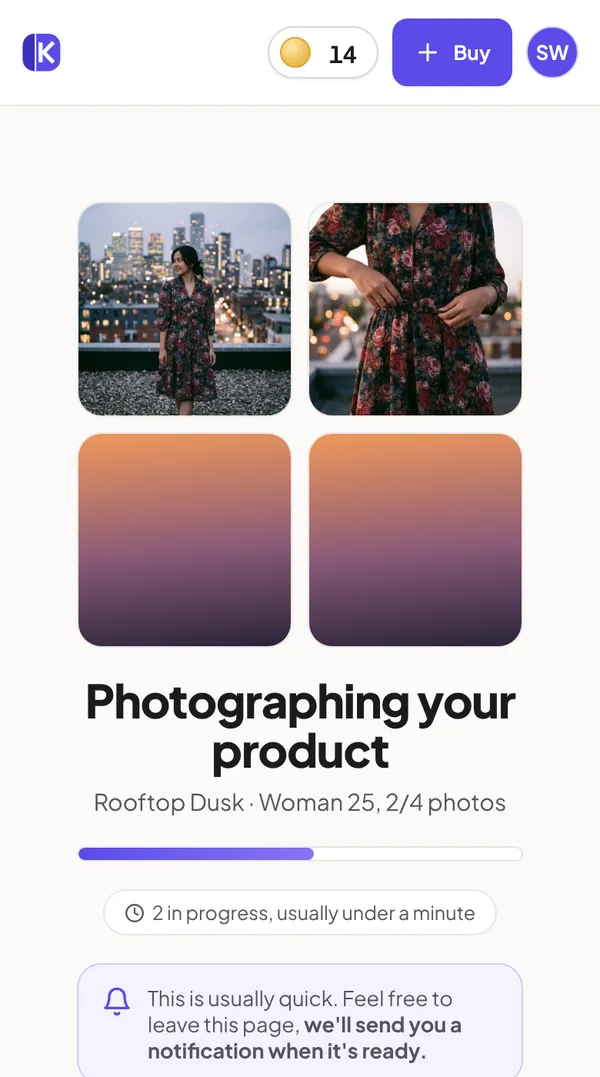
- You do not have to stay on the page. Close it or go back home. We send you an email and a notification in the app when the set is ready.
- Your credits are held, not spent, while the photos are being made. They are only used for photos that are actually delivered.
Create a promo poster
A promo poster is one finished graphic, with your product, headline and offer designed together, ready for a feed, a story or a WhatsApp Status.
Choose Promo Poster
Tap Create new and choose Promo Poster.
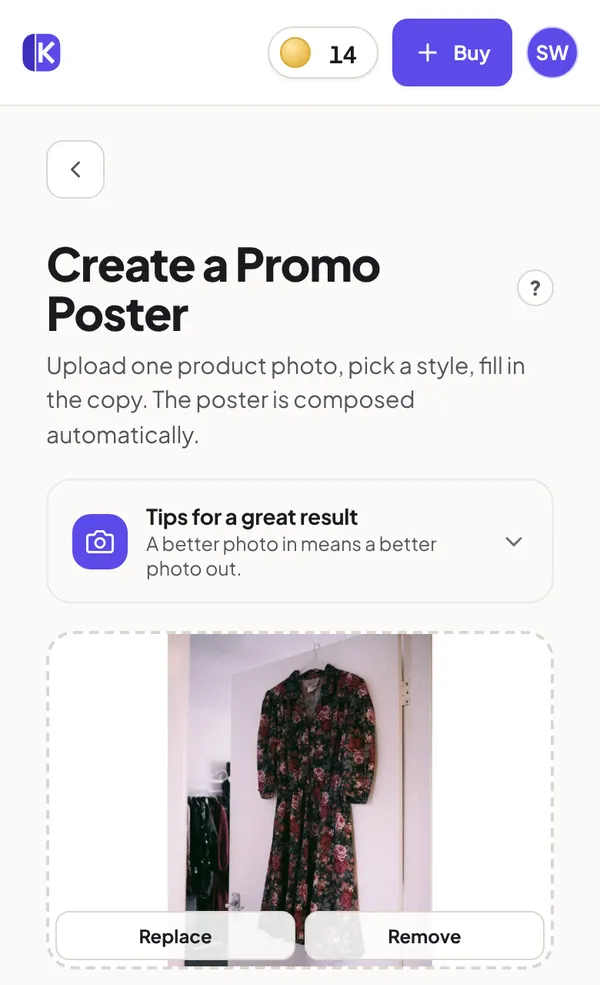
Upload one product photo
The same photo tips apply. One clear photo of the product is all a poster needs.
Pick a style
Each style is a mood, not a fixed template. The design is worked out for your product, so two sellers who pick the same style still get different posters.
Write the copy
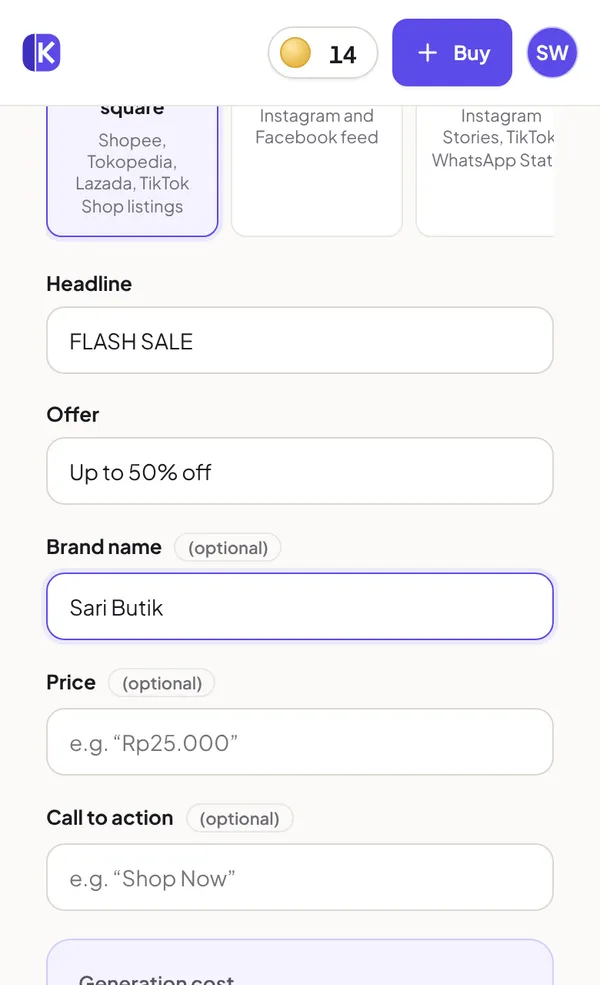
Headline and Offer are required, for example “FLASH SALE” and “Up to 30% off”. Brand name, price and a call to action (“Shop now”) are optional. Short copy looks best: a few strong words beat a sentence.
Pick a shape and create
Posters come in three shapes:
- Marketplace square
- Shopee, Tokopedia, Lazada, TikTok Shop listings
- Feed portrait
- Instagram and Facebook feed
- Story / Reel
- Instagram Stories, TikTok, WhatsApp Status
The poster price is shown on the form before you confirm. Tick the Terms box and create.
Your results: view, download, redo
Open your set
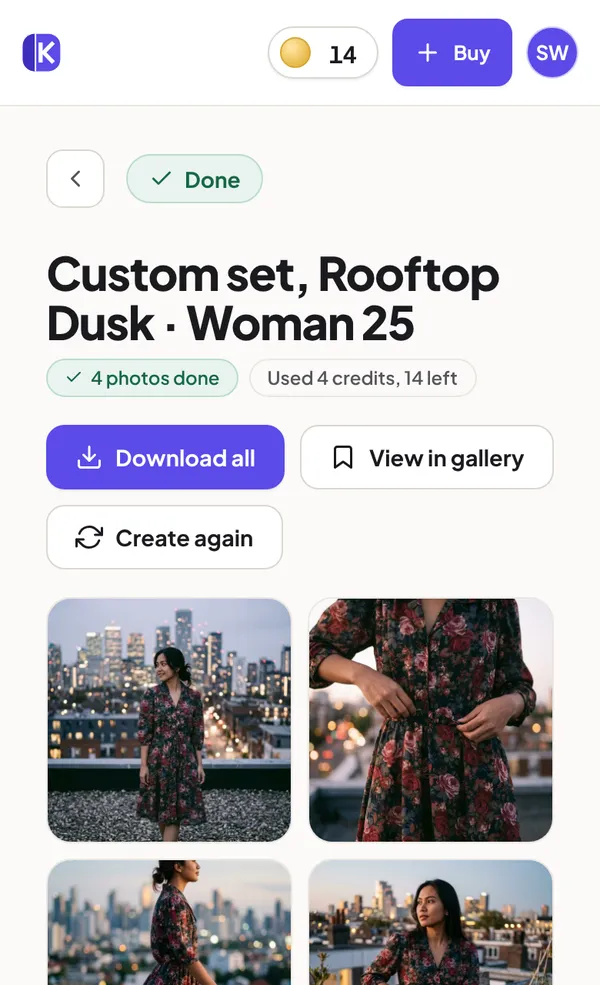
A finished set opens from the notification, from Home, or from the Gallery. Tap any photo to see it full size.
Download
Download photos one at a time, or tap Download all for the whole set. They are yours to use commercially: on marketplaces, social media, your website or in print.
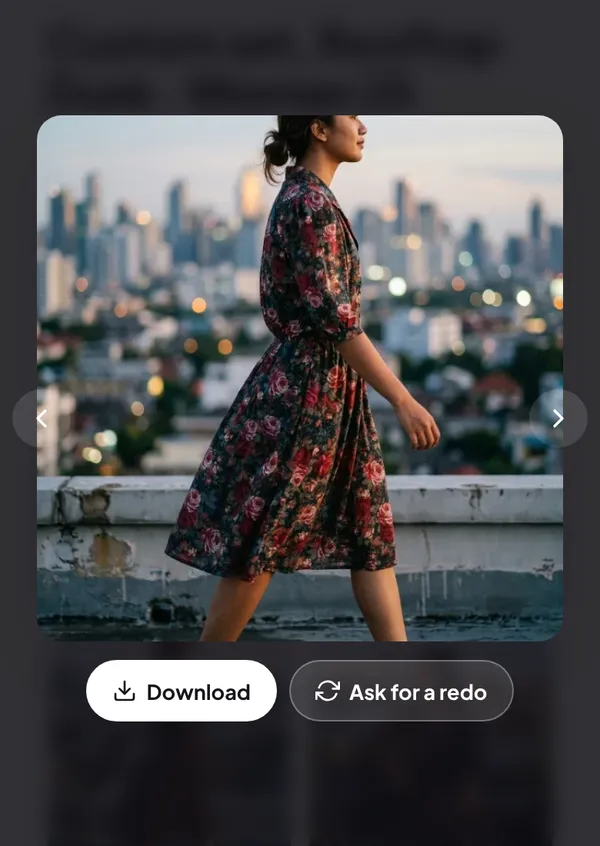
Ask for a redo if a photo is wrong
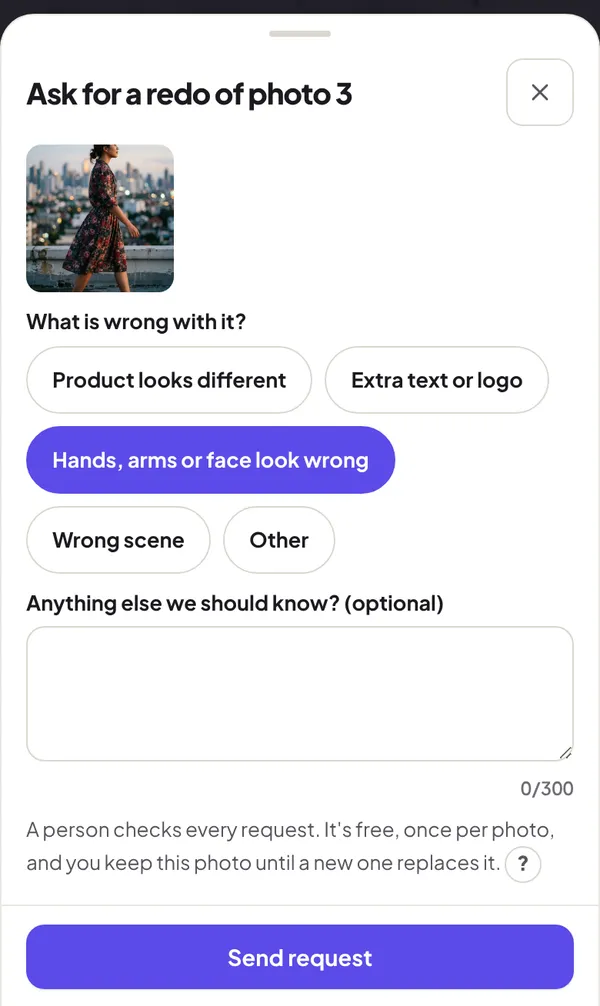
If a photo came out wrong, open it full size and tap Ask for a redo. Pick what is wrong (the product looks different, extra text or a logo, hands or a face look wrong, the wrong scene) and add a note if you like.
- It is free, once per photo, within 7 days of receiving it.
- A person on our team checks every request and remakes the photo.
- You keep the original until the new one replaces it, and you can compare the two.
Credits and payment
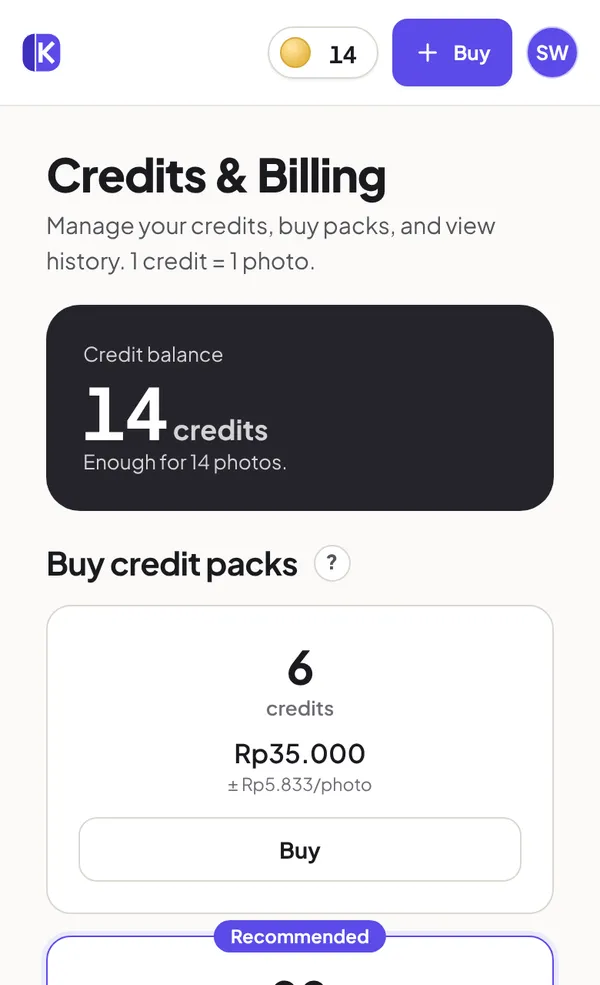
- One credit is one photo, on every set size and every scene. A promo poster costs a few credits, shown before you confirm.
- Credits never expire. Buy once and use them whenever you need them.
- Buy credit packs from the Credits tab. Bigger packs cost less per photo; see current pricing. When a promotion is running, its discount or bonus credits are applied automatically, there is no code to enter.
- Pay the way you like: QRIS, e-wallets and bank transfer, through Midtrans. Any admin fee for a method is shown before you pay. Credits usually arrive within a minute; some bank transfers take longer to confirm.
- Failures cost nothing. A photo or poster that fails returns its credits automatically. A delivered result is final: its credits are not returned because of taste or style, but you can ask for a free redo (see above), and a broken file (blank, corrupted) gets its credits back if you message us within 7 days.
When something goes wrong
- My photo was rejected
- Katalogi accepts product photos only, and uploads are checked automatically. Try a clearer photo of just the product. If you think it was a mistake, message us.
- “We could not check this image right now”
- The photo check is briefly unavailable. Nothing is wrong with your photo; wait a few minutes and upload again.
- Not enough credits
- The review step tells you how many more you need. Buy a pack, or choose fewer photos to fit your balance.
- The generation failed
- Your credits are already back in your balance. Tap Try again, or try a clearer photo or another scene.
- The product looks different from mine
- Ask for a free redo of that photo within 7 days. Next time, add a second angle and make sure the label is sharp and readable.
- I paid but my credits did not show
- Most payments add credits within a minute. If yours have not appeared, message us with the order ID from your payment app or receipt email.
Still stuck? Message us
Message us on Instagram @katalogi_id or email hello.katalogi@gmail.com. Inside the app, Help & contact in your account menu has both, plus quick answers.
Ready to try it? Your first photos are free.
Start free